How to Install IPTV on a Firestick
Getting IPTV on a Firestick takes four steps: install an IPTV player app, allow it to run, add your IPTVZ login and load the TV guide. Most people are done in about 10 minutes. This IPTV Firestick setup guide covers every Fire TV that runs Fire OS, with the screens you will see.
Table of contents
- Before you start
- Is IPTV still working on Firestick in 2026?
- Watch: Firestick setup in 90 seconds
- Step 1: Choose an IPTV player for Firestick
- Step 2: Install the player
- Step 3: Add your IPTVZ login
- Step 4: Load the TV guide (EPG)
- How to fix buffering on a Firestick
- Firestick tips that save time
- Firestick IPTV questions
Before you start
You need three things:
- A Fire TV device running Fire OS: Fire TV Stick, Fire TV Stick 4K or 4K Max, Fire TV Cube, or a TV with Fire TV built in.
- Your IPTVZ login: the server URL, username and password from your welcome email, which you type with the Fire TV remote. No account yet? Start the free trial.
- Internet speed: about 15 Mbps for HD and 25 Mbps or more for 4K.
Check your model first. The Fire TV Stick 4K Select, released in 2025, runs Amazon’s Vega OS instead of Fire OS. It only installs apps from the Amazon Appstore, so Downloader and sideloaded players such as TiviMate don’t work on it (AFTVnews explains the details). The same goes for the new Fire TV Stick 4K (3rd gen), released on September 30, 2026. On either one, use a player from its Appstore; the 4K Max and the Fire TV Cube still run Fire OS. To see your model, open Settings, then My Fire TV, then About.
Is IPTV still working on Firestick in 2026?
Yes: IPTV for Firestick still works on every Fire TV that runs Fire OS. Two things changed, though. The Fire TV Stick 4K Select runs Vega OS and only installs apps from Amazon’s Appstore. And Amazon now blocks apps it identifies as piracy apps, using a list from the Alliance for Creativity and Entertainment, including apps installed with Downloader; you see a notice before an app is removed. Installing apps from outside the Appstore is still allowed on Fire OS models (AFTVnews has the details). The player apps in this guide come with no channels of their own; you add your provider’s login.
Watch: Firestick setup in 90 seconds
Step 1: Choose an IPTV player for Firestick
The player is the app you watch in. IPTVZ supplies the channels, movies and guide data; the player displays them. Two players cover almost everyone:
| Player | Login types | TV guide | Cost | Good for |
|---|---|---|---|---|
| TiviMate | Xtream Codes, M3U | Full channel grid, like a cable box | Free version; Premium is a paid upgrade | Cord cutters who want a familiar guide |
| IPTV Smarters Pro | Xtream Codes, M3U | Simple guide per channel | Free | Beginners who want live TV, movies and series in one menu |
Which IPTV player is best on Firestick? TiviMate if you want a cable-style guide, IPTV Smarters Pro if you want the simplest IPTV app for Firestick. Both have a free version: IPTV Smarters Pro is free, and TiviMate is free with Premium as a paid upgrade, which makes them the usual answer to “best free IPTV player for Firestick”.
Both work with IPTVZ. For a wider comparison, see our guides to the best IPTV setup for Firestick and the best IPTV app for each device, or the full IPTV Smarters Pro guide.
Step 2: Install the player
Option A: from the Amazon Appstore
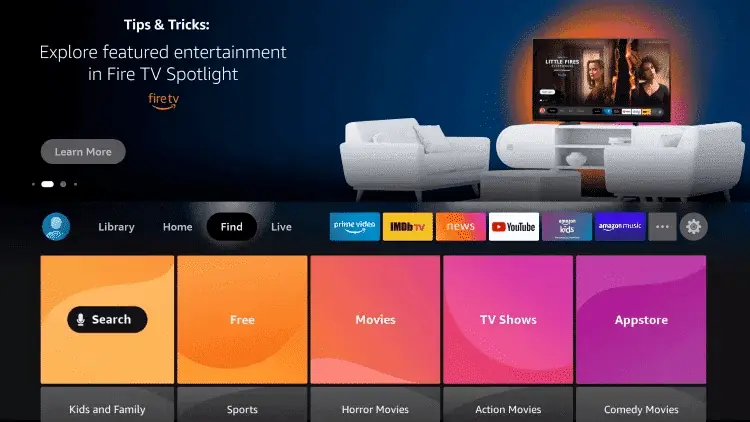
Some players are listed in the Appstore. Press Home, open Find, then Search, type the player’s name and install the version published by its original developer. If your player isn’t listed, use option B.
Option B: download Downloader on Firestick, then the player (Fire OS only)
The Downloader app for Firestick is free in the Amazon Appstore and installs apps from a web address. Here is how to download Downloader on Firestick and use it; you only need to set it up the first time.
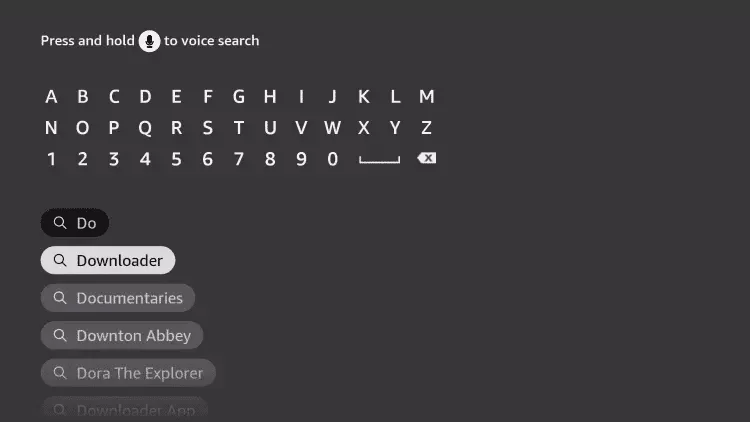
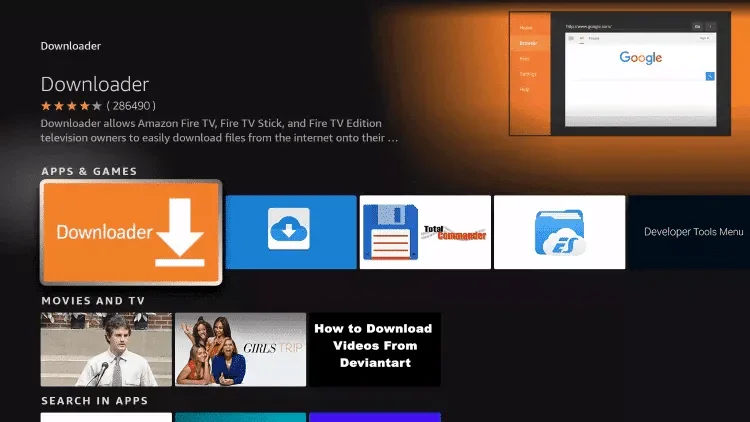
- On the Home screen, open Find, then Search, and type Downloader.

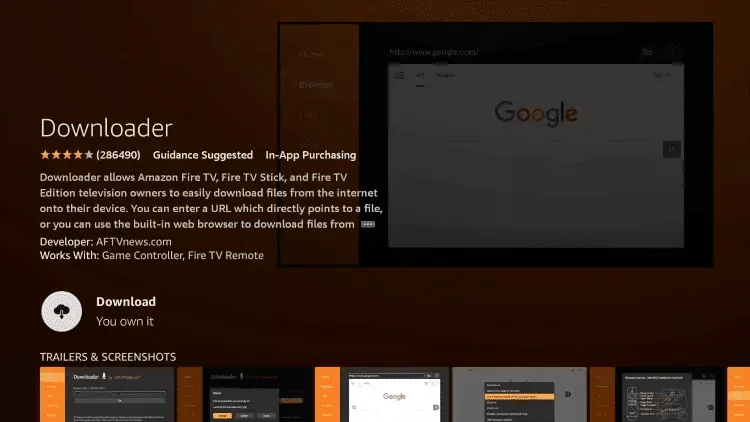
- Select the Downloader app (orange icon) in the results.

- Select Get or Download. When it is installed, don’t open it yet.

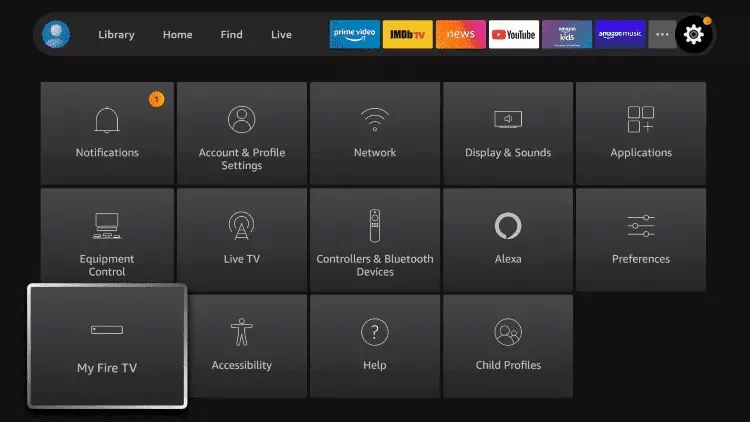
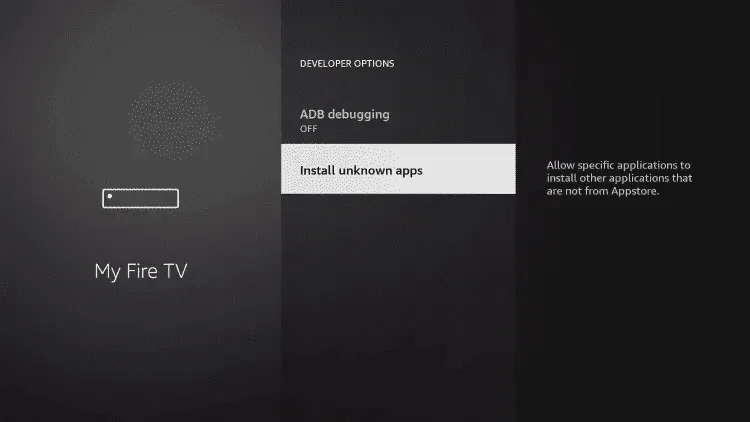
- Go to Settings, then My Fire TV. If you don’t see Developer options, open About and select your device name about 7 times, until the message says you are a developer.

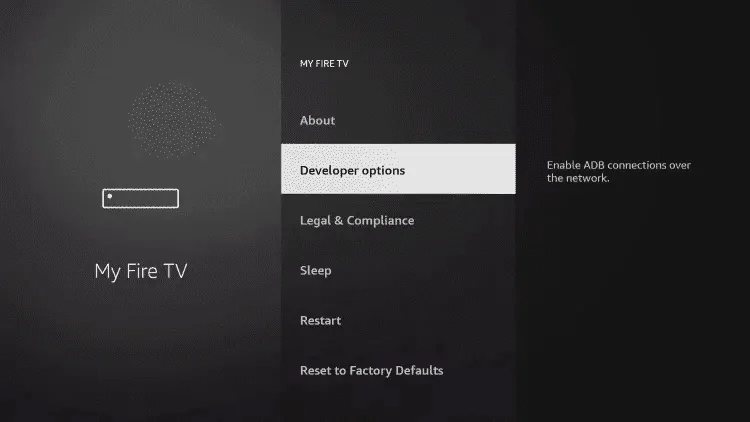
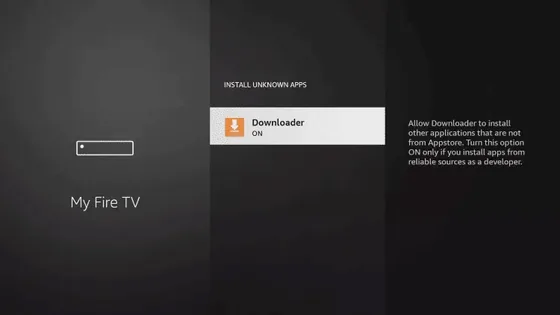
- Open Developer options, then Install unknown apps.


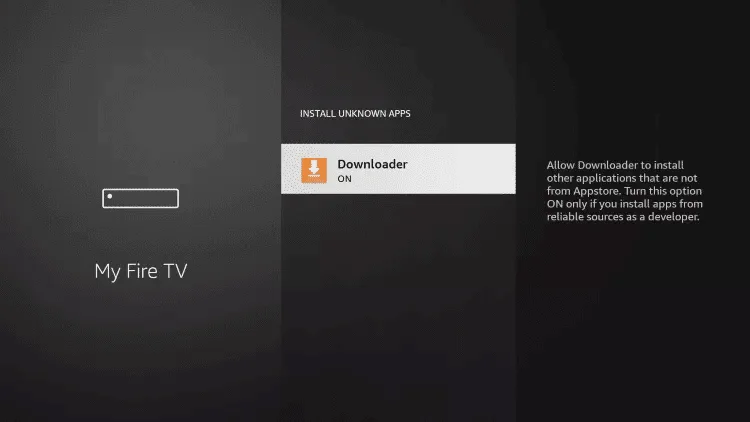
- Select Downloader so it shows ON.

If Downloader isn’t in the list, restart the Fire TV (Settings, My Fire TV, Restart) and look again. Some Fire OS updates have had a bug that hides apps here; if it is still missing, contact support.
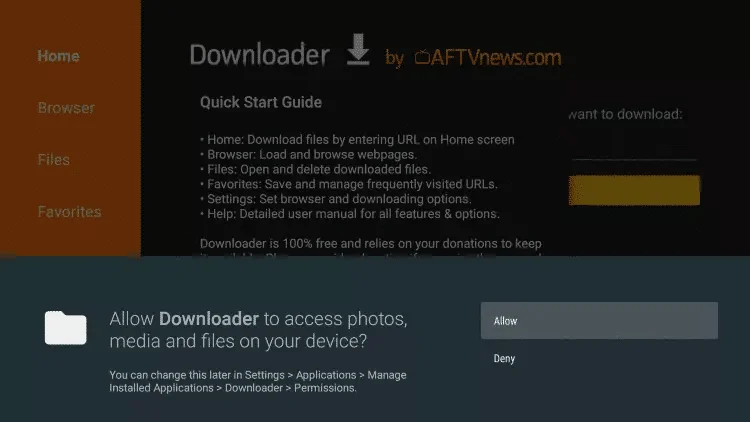
- Open Downloader, allow access to files if it asks, and close the quick-start note.

- Type the player’s download address in the URL field and select Go. Use the address from the developer’s website, or ask our support team for the current link.
What is a Downloader code? A short number, created with AFTVnews’ URL shortener, that stands for a download address. You type it into Downloader’s address bar instead of the full link. Only use IPTV Downloader codes from the app’s developer or from our support team: code lists on random websites can point to unofficial files.
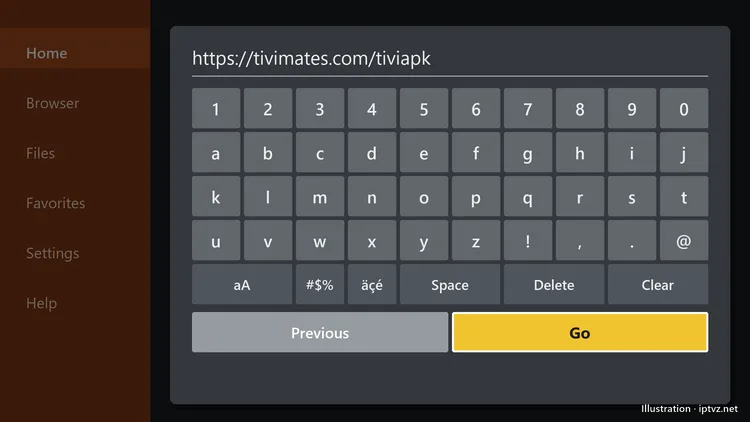
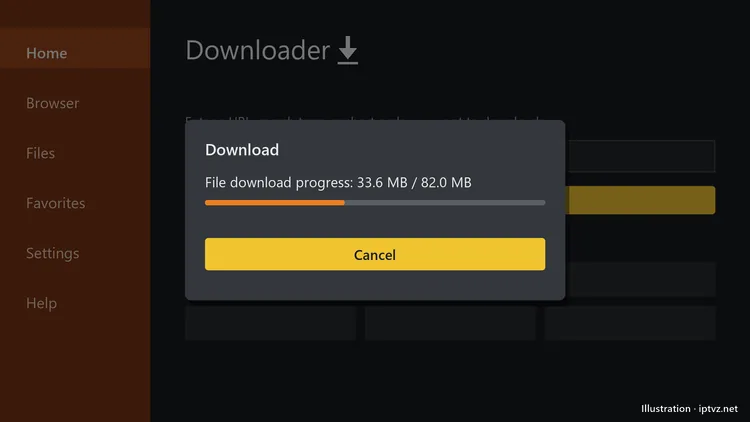
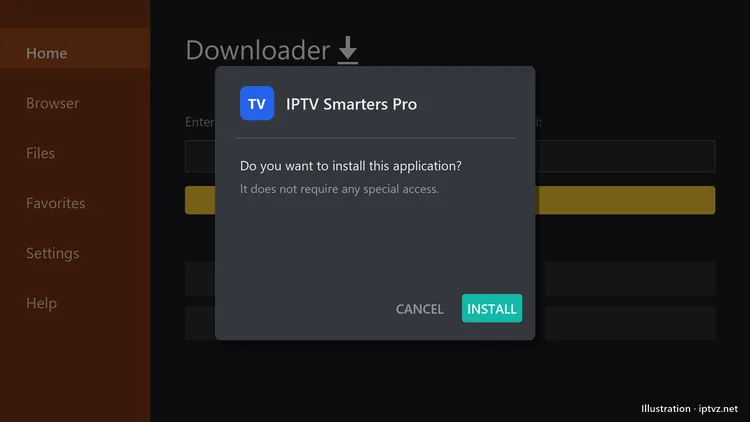
- Wait for the download to finish, then select Install.


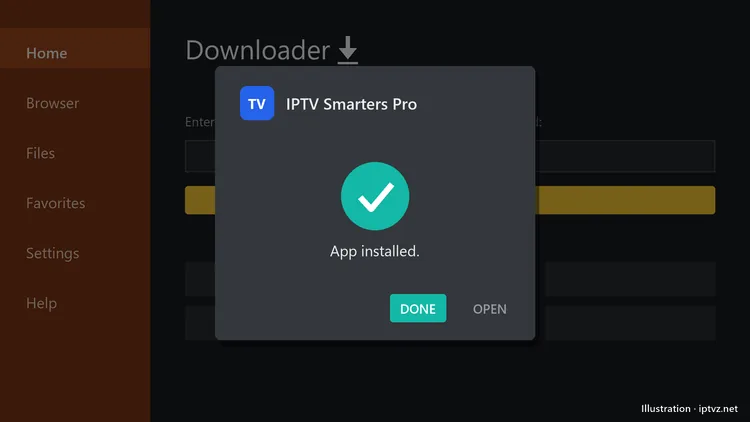
- Select Done. Downloader then offers to delete the installer file; delete it to free up storage. The app itself stays installed.

Step 3: Add your IPTVZ login
Your welcome email (or trial email) contains three details: the server URL, your username and your password. They work the same way on every Fire TV device. Here is where they go.
Xtream Codes login (recommended)
Xtream Codes loads live channels, movies, series and the TV guide in one step.
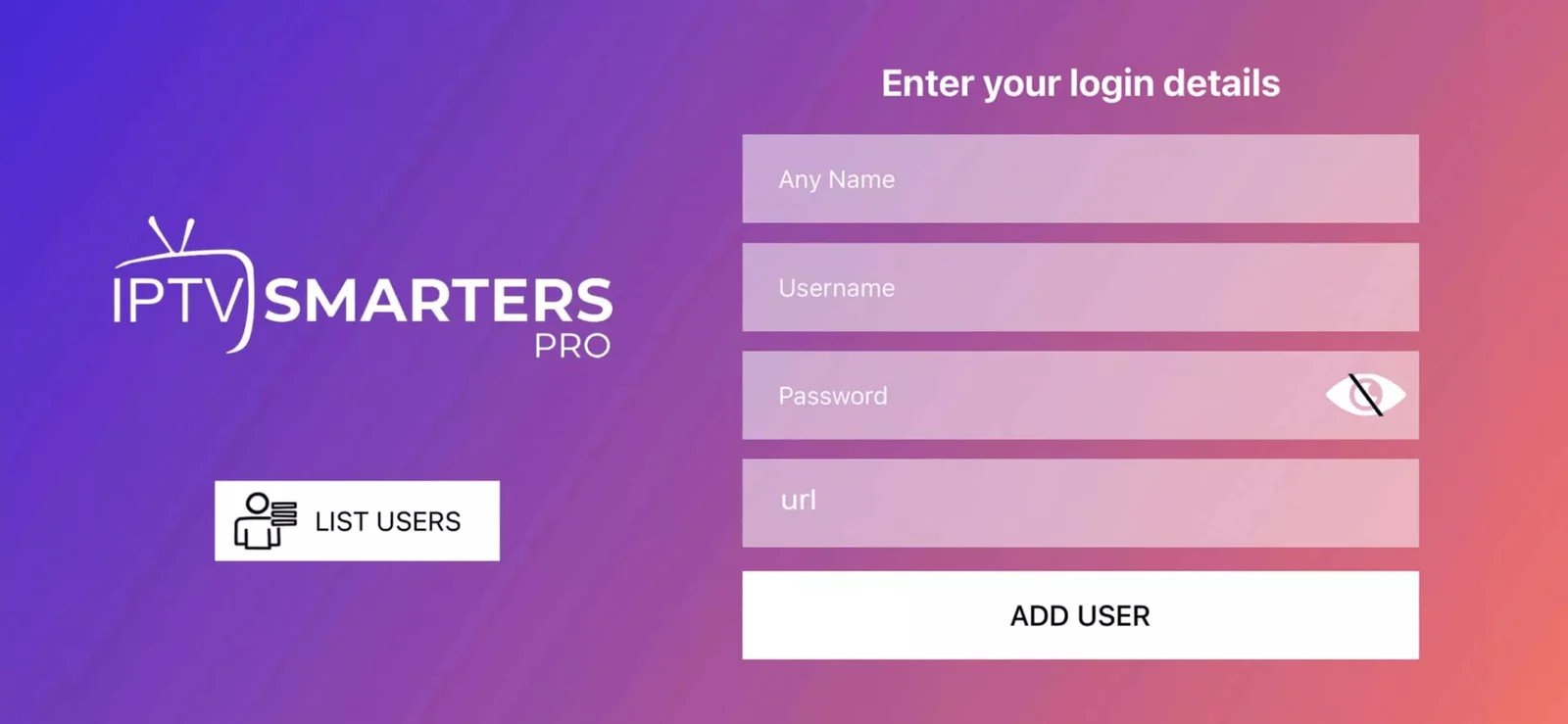
- IPTV Smarters Pro: choose Login with Xtream Codes API. Enter any name (for example “IPTVZ”), then your username, password and server URL, and select Add user.
- TiviMate: choose Add playlist, then Xtream Codes. Enter the server address, username and password, select Next and finish the wizard. The TiviMate guide has more detail.

Type the server URL exactly as it appears in the email, including http:// and the port number if there is one. The username and password are case-sensitive. Most login errors come from one wrong character, so type them rather than copying from a phone.
M3U link (alternative)
Use the M3U link only if your player doesn’t support Xtream Codes. Add it as a playlist URL. To show program data, the guide then needs a separate EPG link, which isn’t in your login email, so Xtream Codes is the better choice.
Step 4: Load the TV guide (EPG)
With an Xtream Codes login, the guide loads by itself. The first load can take 5 to 15 minutes, so leave the app open while it runs. IPTVZ has guide data for 1,600+ US channels; PPV event slots and 24/7 channels have none, because they have no fixed schedule.
- TiviMate: Settings, then EPG, then Update EPG.
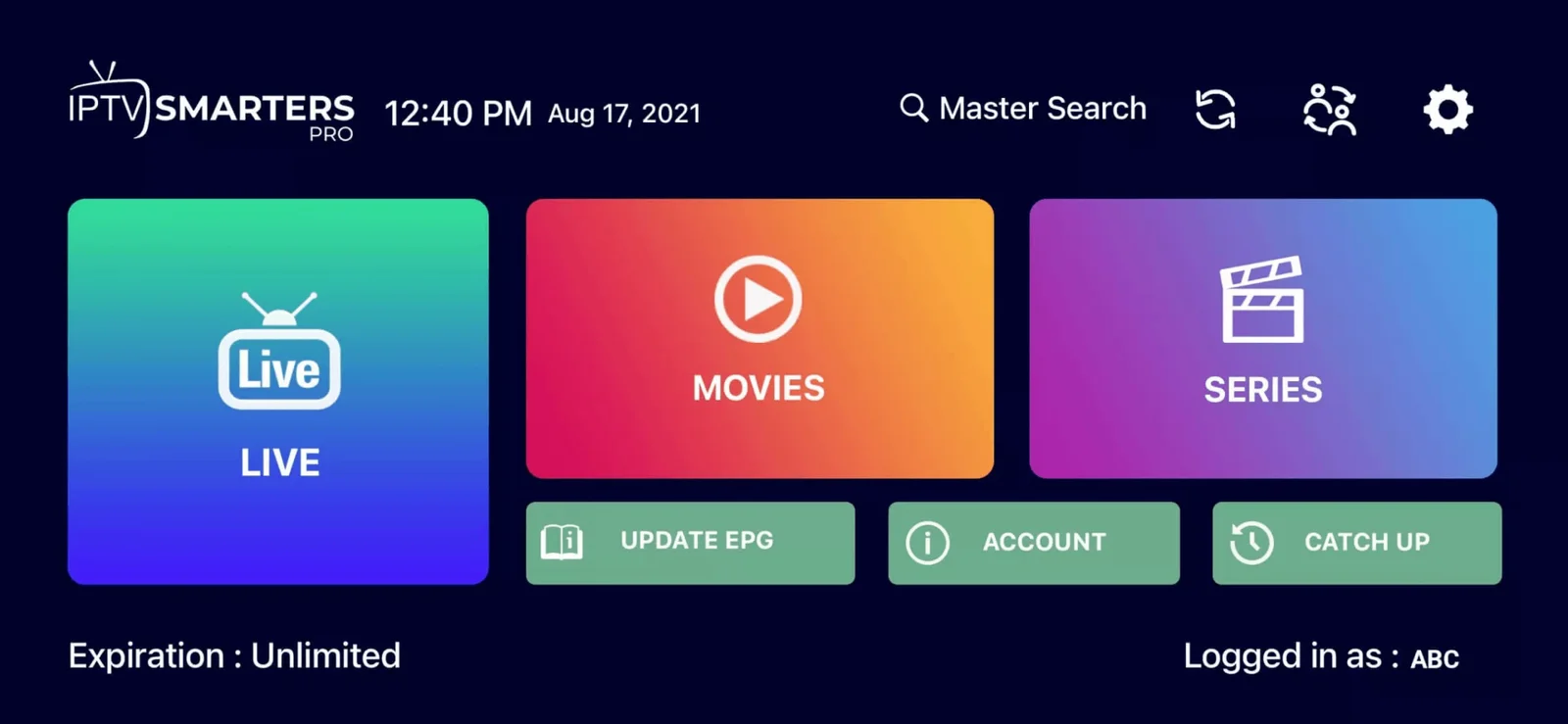
- IPTV Smarters Pro: select Update EPG on the dashboard (some versions say Install EPG), or refresh it from the settings.
If program times are off by a few hours, the cause is the device clock, not the guide. Check the time zone under Settings, then Preferences, on the Fire TV and refresh the guide.
How to fix buffering on a Firestick
What’s actually happening when IPTV on a Firestick buffers: the stick receives video more slowly than it plays it. The root cause is usually the Wi-Fi connection between the stick and the router, not the stream itself. Work through these in order:
- Use a wired connection. An Ethernet adapter for Fire TV plugs into the stick’s power port and removes Wi-Fi from the equation.
- Use 5 GHz Wi-Fi and keep the router within a room or two of the TV. Behind the TV, a short HDMI extender helps the stick’s antenna.
- Restart the stick: Settings, My Fire TV, Restart. It clears memory that background apps hold.
- Clear the player’s cache: Settings, Applications, Manage installed applications, select the player, then Clear cache.
- Increase the buffer in TiviMate: Settings, Playback, Buffer size.
- Test another channel. If only one channel buffers, the problem is that channel; tell support which one.
Still buffering on every channel with a wired connection? Run a speed test on the stick, for example by opening fast.com in Downloader’s built-in browser, then contact us with the result. More fixes are in our IPTV troubleshooting guide.
For player settings, VPN tests and peak-time problems, see our guide to fixing IPTV buffering.
Firestick tips that save time
- Put the player on the home row: hold the Home button, open Apps, highlight the player, press the menu button (three lines) and choose Move to front.
- Turn off data monitoring: Settings, Preferences, Data Monitoring, Off. It can warn about or limit video quality.
- Keep free storage: delete installer files in Downloader and apps you don’t use. A nearly full stick slows down.
Firestick IPTV questions
- Is the Downloader app safe?
- Downloader is a free, widely used app in the Amazon Appstore. The risk is in what you download with it, so only install APK files from the app developer’s website or from a link our support team sends you.
- Do I need a VPN on Firestick?
- No. IPTVZ works on a Firestick without a VPN. Some people use one for privacy; if streams slow down while it is on, turn it off for a moment to see whether the VPN is the cause.
- Why can’t I install apps from outside the Appstore on my new Fire TV Stick?
- You probably have a Fire TV Stick 4K Select or the 2026 Fire TV Stick 4K (3rd gen). Both run Amazon’s Vega OS, which only installs apps from the Amazon Appstore, so Downloader and sideloaded players don’t work on them. Use a player listed in the Appstore, or a Fire OS model.
- Should I use TiviMate or IPTV Smarters Pro?
- Use TiviMate if you want a cable-style channel grid with a full TV guide. Use IPTV Smarters Pro if you want one simple menu for live TV, movies and series. Both work with your IPTVZ Xtream Codes login.
- How many Firesticks can I use with one subscription?
- As many as your plan’s device count allows at the same time, from 1 to 5. You can install the player on more sticks, but only that many can play at once.
- Is Amazon blocking IPTV apps on Firestick?
- Partly. Amazon removes apps it flags as piracy apps, working from a list supplied by the Alliance for Creativity and Entertainment, and that includes apps sideloaded with Downloader; a notice appears before removal. Fire OS sticks still let you install players from outside the Appstore, and TiviMate or IPTV Smarters Pro hold no channels until you add a provider login.
- What is the best free IPTV player for Firestick?
- On a Firestick, IPTV Smarters Pro costs nothing and TiviMate has a free tier; TiviMate Premium is the paid upgrade, which adds recording. Either one signs in with an Xtream Codes login.
- Which IPTV app works on the Fire TV Stick 4K Select?
- Only apps from Amazon’s Appstore, because the 4K Select runs Vega OS. Search the Appstore for an IPTV player that supports Xtream Codes or M3U; Downloader and sideloaded players won’t install.
- Is IPTV on Firestick legal?
- The Firestick and IPTV player apps are legal. Whether a particular IPTV service is legal depends on whether it has the rights to what it streams; our explainer covers what US law says about IPTV.
Need help?
Stuck on a step? Our support team helps with Firestick setup 24/7 by live chat and email. Tell us your Fire TV model and the screen you are on.
Contact SupportSetup guides for other devices
Apple TV 4K, iPhone, iPad
Android phones and tablets, Google TV, NVIDIA Shield
Samsung Tizen and LG webOS; install a player on the TV
Z8 Pro, Z10 Pro, Z11 Pro, GTV with MyTVOnline
MAG 250, 254, 322, 324, 420, 424 set-top boxes
Google TV, Fire TV, Roku and VIDAA models
Sources
- AFTVnews: Vega OS coverage aftvnews.com
- Amazon to start blocking sideloaded piracy apps on Fire TVs aftvnews.com
- Introducing the AFTVnews URL Shortener for the Downloader App aftvnews.com
Discover more
Explore our other guides & insights
From device setup guides to channel overviews: find everything you need to stream smarter.