

How to Fix IPTV Buffering
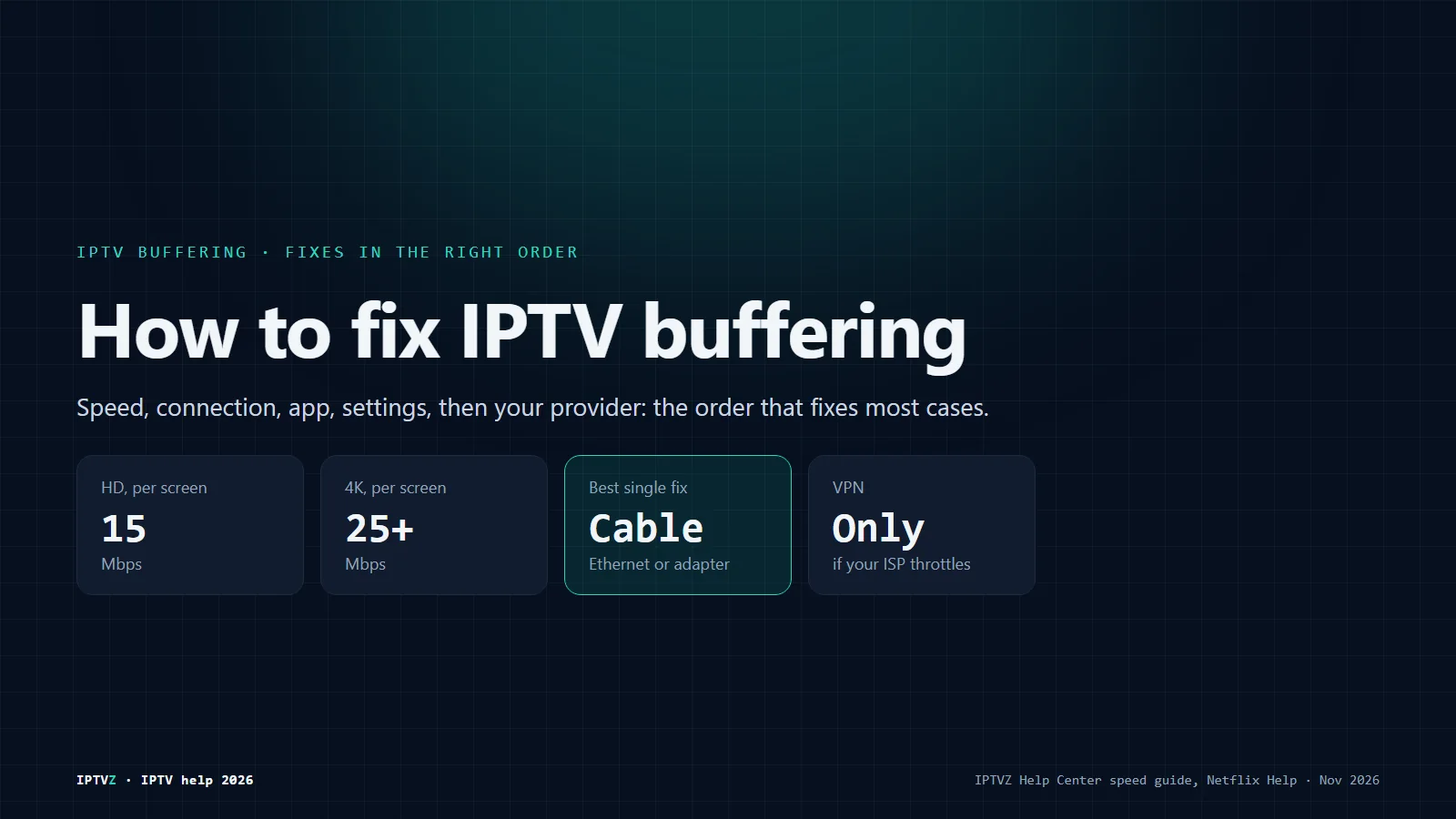
IPTV buffering means your device gets video more slowly than it plays it, and you fix it in this order: speed, connection, app, settings, then your provider. Plan on about 15 Mbps per screen for HD and 25 Mbps or more for 4K.
I write our setup guides from real installs, and buffering is the complaint I hear most. It’s almost never the subscription. Below are the fixes in the order I check them, from the one-minute ones to the rare cases. For login errors and black screens, start with our guide to IPTV not working instead.
IPTV buffering fixes at a glance
- Speed you need
- About 15 Mbps per screen for HD, 25 Mbps or more for 4K, measured on the TV device
- Most common cause
- Weak Wi-Fi between the router and the TV or stick
- Best single fix
- An Ethernet cable, or an Ethernet adapter on a Firestick
- VPN
- Helps only if your internet provider throttles streaming; otherwise it slows things down
- Only one channel buffers?
- That channel’s source is the problem; tell support the channel name
Why IPTV buffers
Live IPTV streams arrive in real time, so any slowdown between the server and your screen shows up as a spinning wheel. There are four places it can happen:
| Cause | How it looks | Where to start |
|---|---|---|
| Your home connection | Every channel buffers, often in the evening | Fixes 1 and 2 |
| Your device or app | One TV buffers, another in the house doesn’t | Fixes 3, 4 and 5 |
| Your internet provider | Streaming slows, but speed tests look fine | Fix 6 |
| The IPTV provider | Every device and network buffers at once | The provider section |
If only one channel buffers and the rest play fine, skip the fixes. That channel’s source has a problem, so tell your provider the exact channel name.
Fix 1: Test your internet speed the right way
Run the speed test on the TV device itself, at the time you usually watch. A test on your phone next to the router tells you nothing about the stick behind the TV.
- Open a speed test on the device: fast.com or speedtest.net in the device’s browser. On a Firestick, the Downloader app has a browser.
- Run it two or three times, in the evening if that’s when the buffering happens.
- Compare with what you need: about 15 Mbps per screen for HD and 25 Mbps or more for 4K, with 50 Mbps giving 4K comfortable headroom.
- Add up the screens. Two HD TVs and a 4K TV playing at once need about 55 Mbps.
Those figures are higher than Netflix’s, which recommends 5 Mbps for Full HD and 15 Mbps for 4K (Netflix Help). Live channels can’t buffer far ahead like a movie, so give them more room.
If the results jump around a lot between tests, the connection is unstable. That causes buffering even when the average looks fine.
Fix 2: Use Ethernet or fix your Wi-Fi
A cable fixes more IPTV buffering than any setting. Wi-Fi drops packets when walls, microwaves and neighbors’ networks get in the way, and live video has no time to recover.
- Plug in a cable if the TV or box has an Ethernet port. Smart TVs, Android boxes, Apple TV and MAG boxes usually do.
- On a Firestick, use an Ethernet adapter that plugs into the power port. It removes Wi-Fi from the equation.
- Switch to 5 GHz Wi-Fi if you can’t run a cable. It’s faster than 2.4 GHz at short range, with the router a room or two away at most.
- Move the router up and out, off the floor and out of cabinets. A mesh point near the TV helps in big homes.
- Restart the router: unplug it for 30 seconds, plug it back in and wait for the lights to settle.
- Pause big downloads during the game, such as console updates and cloud backups.
Fix 3: Restart and clear the cache
A full cache and a device that hasn’t restarted in weeks both cause stutter. Clearing the cache doesn’t delete your login.
- Firestick and Fire TV: Settings, Applications, Manage installed applications, select the player, then Force stop and Clear cache.
- Android TV and Google TV: Settings, Apps, select the player, then Force stop and Clear cache.
- Smart TVs: turn the TV off at the wall for a minute, because standby isn’t a real restart on most models.
- Any device: update the player app, and restart the device once a week if it stays on all the time.
Fix 4: Change the player settings
A bigger buffer gives the player more seconds of video in reserve. The trade-off is a slightly slower channel change.
- TiviMate: Settings, Playback, Buffer size. Raise it one step at a time and test.
- IPTV Smarters Pro: its settings let you choose which player it uses and switch between hardware and software decoding. Menu names change between versions, so look under Settings for the player options.
- Decoding: hardware decoding is usually smoother on TV devices. If a channel stutters or the picture freezes while sound continues, try software decoding for that channel.
- Quality: if your list has HD and 4K versions of a channel, try HD. If the buffering stops, the cause is bandwidth.
Fix 5: Try another player
Put the same login in a second player. If TiviMate plays smoothly and another app doesn’t, the problem is the app, not your internet or the service.
Our guide to the best IPTV app compares TiviMate, IPTV Smarters Pro and other players on each device. It takes about five minutes to add your login to a second app.
Fix 6: ISP throttling and VPNs
A VPN only helps if your internet provider slows down streaming traffic, which is called throttling. In every other case it adds a detour and makes buffering worse.
Here’s a fair test. Watch the same channel at the same time of day, once with the VPN on and once with it off. If it’s smooth only with the VPN, your provider is probably throttling, and a VPN with a server near you can help.
If it buffers either way, the VPN isn’t the answer, so turn it off and go back to Fixes 1 and 2. IPTVZ works without a VPN, and we don’t recommend a specific brand.
Firestick buffering fixes
When a Firestick keeps buffering but the internet is fine, the stick’s own Wi-Fi is usually the reason. It sits behind the TV, where the signal is weakest.
- Use the HDMI extender that comes in the box, so the stick hangs away from the TV’s metal back.
- Add an Ethernet adapter for the most stable connection.
- Restart the stick: Settings, My Fire TV, Restart. Do it after big updates too.
- Free up storage: uninstall apps you don’t use, because a nearly full stick slows down.
- Check the model. HD-only Fire TV Sticks can’t play 4K channels, and the 4K Max has Wi-Fi 6E for a stronger connection.
The Firestick setup guide covers installing a player, and our best IPTV for Firestick guide covers which sticks still allow IPTV players.
When the provider is the problem
If every channel buffers on every device and every network at the same time, the provider’s servers are the likely cause. That usually shows up at peak times, like Sunday at 1 p.m. Eastern or a big fight night.
- Check a second network. Connect the device to your phone’s hotspot for a minute. If it still buffers, your home network isn’t the cause.
- Check a second device. If a phone and a TV both buffer on the same channels, the app isn’t the cause either.
- Tell your provider the channel, the time, your device and app, and a speed test result.
Which IPTV service has the least buffering? No list can answer that for your street and your evening. The only real test is a free trial during the hours you watch, on your own TV. We tested a full NBC game on September 9, 2026, on home Wi-Fi in New York City, with no buffering.
IPTVZ support answers 24/7 by live chat and email. New subscriptions include a 48-hour money-back guarantee for technical issues.
Test it at peak time, free
Start a free IPTVZ trial and watch during the hours you usually do, on the TV you’ll actually use. No card needed.
IPTV buffering questions
- How do I fix buffering while streaming IPTV?
- Work in order: test your speed on the TV device, use an Ethernet cable or 5 GHz Wi-Fi, restart the router and device, clear the player’s cache, raise the buffer size, and try a second player. A VPN only helps if your internet provider throttles streaming.
- How can I watch IPTV without buffering?
- Give each screen about 15 Mbps for HD or 25 Mbps for 4K, connect the main TV by cable, and keep the player updated. Then test the service at peak time on a free trial before you pay for a long plan.
- Will a VPN stop IPTV buffering?
- Only if your internet provider throttles streaming. Test the same channel at the same time with the VPN on and off. If it’s smooth only with the VPN, keep it; otherwise turn it off, because a VPN adds a detour.
- Why does my Firestick keep buffering when my internet is fine?
- Usually the stick’s Wi-Fi: it sits behind the TV, where the signal is weakest. Use the HDMI extender from the box or an Ethernet adapter, restart the stick, clear the player’s cache and free up storage.
- Why does only one IPTV channel buffer?
- Then your setup is fine, and that channel’s source has a problem. Try another version of the channel if your list has one, and tell your provider the exact channel name so it can be checked.
- Which IPTV service has the least buffering?
- It depends on the provider’s servers and your own connection, so no list can promise it for your home. Test any service on a free trial during the hours you watch, such as a Sunday afternoon game, before paying for a long plan.
Speed figures from our Help Center’s internet speed guide and Netflix Help. Setting names from our TiviMate and Firestick setup guides.
Sources
- help.netflix.com: Netflix Help help.netflix.com

 Troubleshooting


Discover more
Explore our other guides & insights
From device setup guides to channel overviews: find everything you need to stream smarter.